
Auto Incrementing a dimension primary key in SSIS
March 10, 2009 by: David LaiWhile working with SSIS to generate star schemas, a common problem I faced was populating a dimension table from another table that did not contain any ids for the items being inserted. If you would try to insert the dimension data without any keys, an error would be thrown since the id field cannot be null.
An easy solution is to have a script populate the id column.
In this example we take a table that does not have any ids related to the dimension that we want to populate. First we aggregate the items that we want inserted into the dimension.

Next we will need to create another column that contains the id column. The column must have an incremented value for each row. In order to do that we must use a script component. Go to the toolbox and select Script Component. Then select Transformation from the Select Component Type menu.
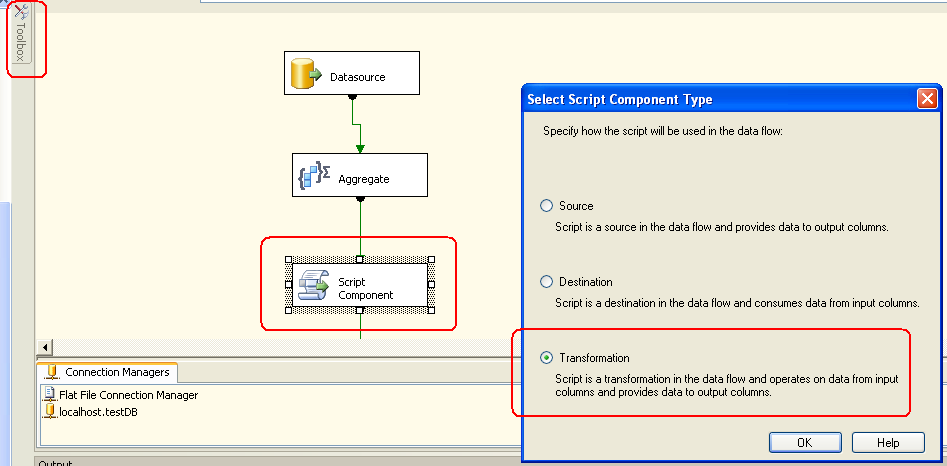
You will have a list of input columns that you can choose from. Choose all of them. Next click on the Inputs and Outputs selection on the left menu. On the output portion click on Add Column Name your output column accordingly and take note of the name since you will need to use it after. In this example I named mine “Row”.

Next select Script from the left side and then click on the Design Script button above the OK and Cancel buttons. Copy and paste the following code and save the script.
Public Class ScriptMain

Inherits UserComponent

'Declare a variable scoped to class ScriptMain

Dim counter As Integer

Public Sub New() ' This method gets called only once per execution

'Initialise the variable

counter = 0

End Sub

'This method gets called for each row in the InputBuffer

Public Overrides Sub Input0_ProcessInputRow(ByVal Row As Input0Buffer)

'

' Increment the variable

'

counter += 1

' Output the value of the variable

Row.Row = counter

End Sub
Please take note that the Row variable must be your output name.


Works great, thanks for writing this.