
Building Scorecards in Xcelsius 2008 and the significance of Global Embedded Fonts
October 21, 2008 by: David Lai
One of the very powerful new additions to Xcelsius 2008 is the ability to create scorecards easily. If we wanted to create scorecards in Xcelsius 4.5 we would need to manually insert trending icons into each row in order to create a scorecard.
In Xcelsius 2008 however we can use a label based menu with alerts. The alerts will act as the trending icons and from there we only need one object to show our indicators.
Here are some simple instructions to create a scorecard.
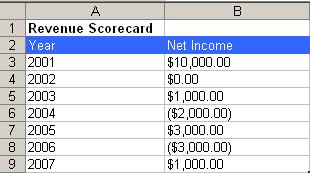
1. Create an Excel file with measures that you want to evaluate. In this example I’ve created a revenue table that contains Net Income for years 2001 -> 2007. In our scorecard we will have indicators that show red for negative income, yellow for income 0 -> $1000, and green for income $1000+
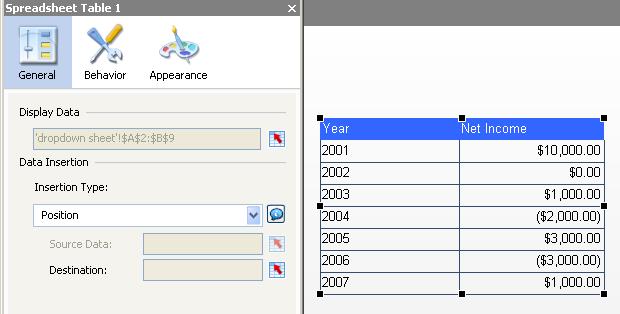
2. Import the Excel file you created in Xcelsius 2008 and insert a spreadsheet table object containing the data from the Excel file
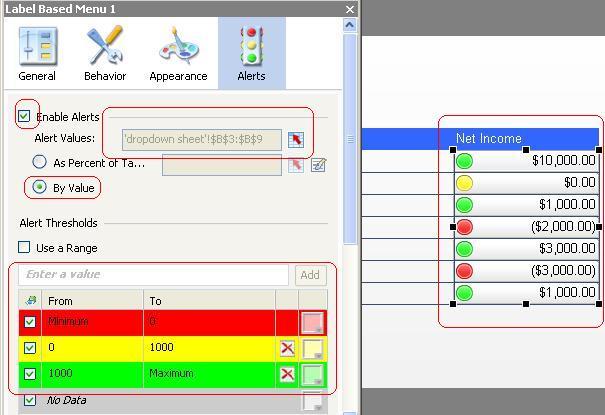
3. Now insert a label menu object and align it vertically. Make sure that it lines up nicely with your table and that the object is layered underneath the table. Now on the label menu properties, go to the alerts section and check Enable Alerts. The alert values will be the values on the Net Income. After that you can setup your alert thresholds accordingly.
We now have a simple scorecard setup, however here’s a common problem that developers will run into when they mix tables with label menus. The text on different objects will be rendered differently depending on the size of the swf you end up placing onto your page. This is a bug that the Xcelsius Developers are working on fixing hopefully for the next release.
I have shown 2 examples of the same swf but of different sizes.
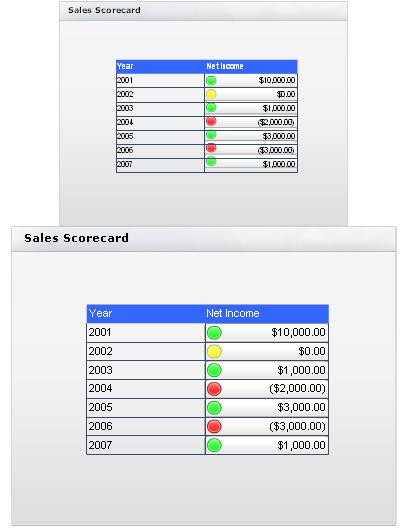
The first swf you can see has incorrect alignment, whereas the second swf has the correct alignment.
There are 2 solutions on how to solve this problem.
1. Manually play with the swf size so that the displayed swf has everything aligned correctly.
2. Global Embedded Fonts
To set global embedded fonts, go to File -> Document Properties and check Use Global Font, then select Use Embedded Fonts.
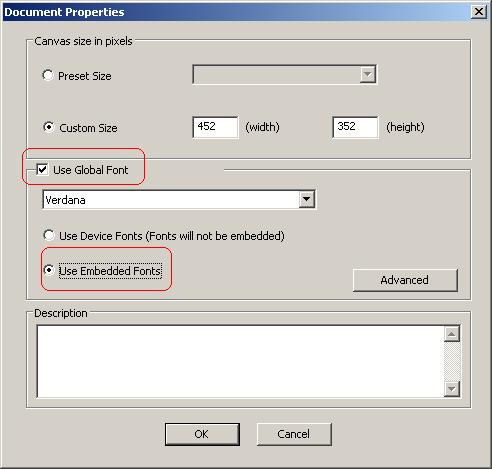
Using global embedded fonts has the following advantages from my experience.
-Smoother fonts on display
-Objects always render with consistent alignment no matter what size you set it to.
The only thing you will have to note is that while developing, you will have incorrect alignment when building your scorecards, but after exporting things will look fine.
I recommend using global fonts because of the smooth font look and the consistent rendering of text after exporting to a swf. You can download the scorecard example I used here


hi David,
I am facing one issue with Scorecard alerts. I am displaying status column which will hold range 1-6 for which i have added alerts as if 0.9- 1.9 –color icon green till 5.9. Here i am using the Alert icons and not color directly.
Now i have Jan- Dec months columns in the scorecard, for which I want to show the color based on the Status, start date and end date columns. Start date and end date columns are will give me range of months the color should be defined in scorecard and based on status column cell color it should display particular color in the months column.
My problem is when i use the color icon feature of it and click on preview it display color icon in month columns but when i select no icon but select the color for alerts it don’t show it on preview.
When i run the .swf file it shows the color codes for months but not when I do it from xcelsius preview.
Could you help me in this .
Thanks and Regards,
Anita
Hi Anita,
The scorecard component must have icons for the alerts.
The other option you have is to overlay a grid component on top of your scorecard/table if you want to just show colors and not alert icons.
Hope that helps
David